Let’s face it—cyber threats are no longer just a “big business” problem. In fact, almost half of all cyber attacks now target small businesses, largely because attackers know smaller teams often don’t have full-time IT support or enterprise-level security. (In our previous article we discussed the recent attacks on big brands and what smaller businesses should be aware of)
If you’ve been wondering how to step up your business’s security without overcomplicating things, Multi-Factor Authentication (MFA) is one of the smartest and simplest ways to do it. And yes—it works even if you’re not a tech wizard.
In this post, we’ll show you how MFA works, why it matters for your business, and exactly how to get started—without breaking your systems or your team’s patience.

Why Should Small Businesses Care About MFA?
Let’s be real: if someone gets hold of just one password—your email, banking login, or cloud access—it can unravel your entire business in minutes. MFA helps prevent that. Even if a hacker manages to grab – or guess – a password, MFA acts as a second lock on the door they can’t easily break through.
And here’s the thing: it’s not complicated. It just means logging in with your usual password and confirming your identity another way—via a code, an app, or your fingerprint.
This simple extra step makes a massive difference in stopping cyber threats like phishing and credential stuffing.

What Exactly Is MFA?
MFA (Multi-Factor Authentication) means using two or more different methods to confirm it’s really you logging into an account. These methods fall into three categories:
1. Something You Know
Your password or PIN. This is your first line of defence, but let’s be honest – passwords alone just don’t cut it anymore.

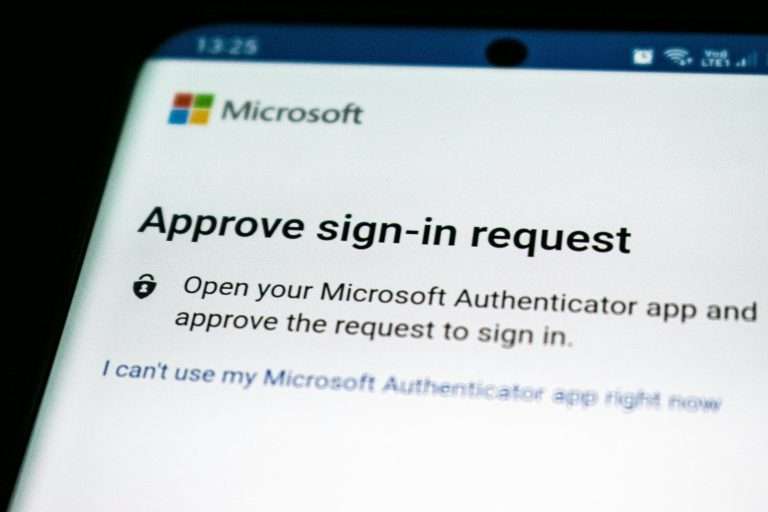
2. Something You Have
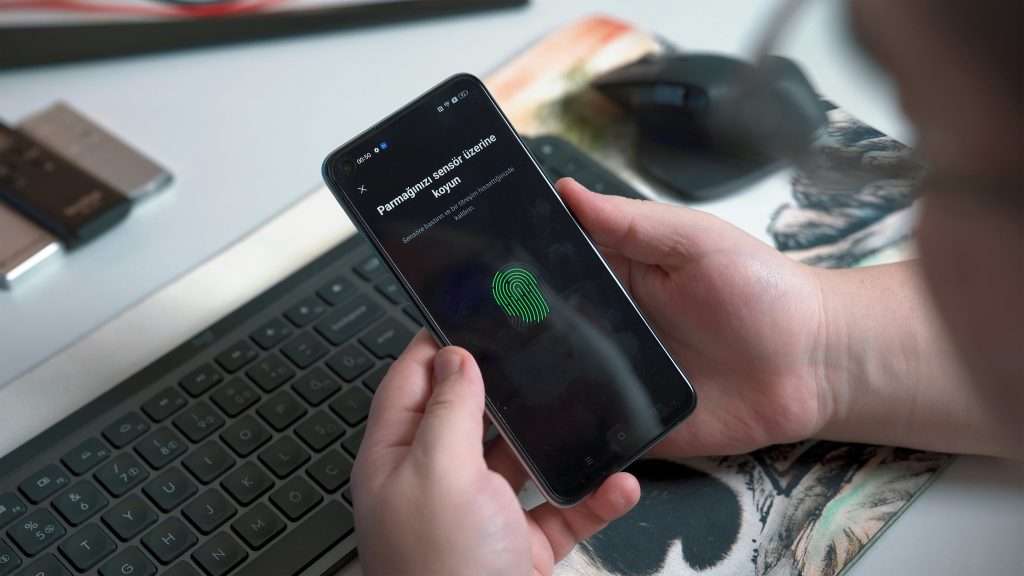
A mobile device, authentication app, or a token that provides a one-time passcode. Even if someone steals your password, they’d still need access to this device to get in.
Examples:
• Text message codes
• Google or Microsoft Authenticator apps
• Security tokens or smart cards
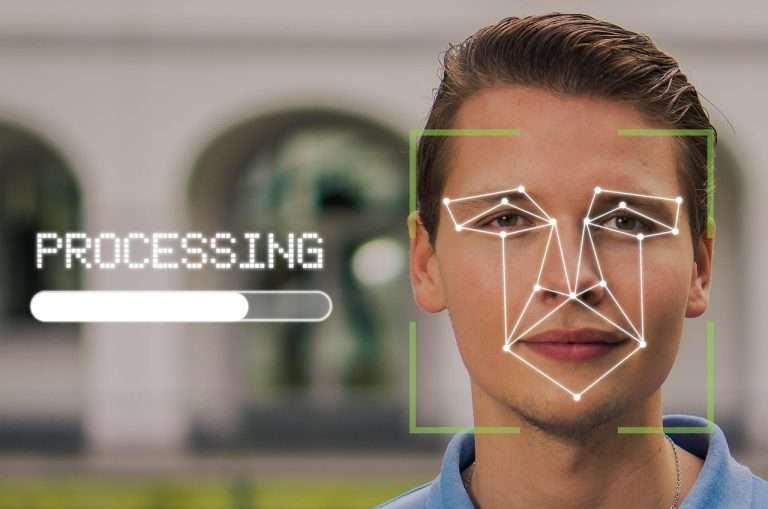
3. Something You Are
Biometrics like fingerprints or facial recognition. These are much harder to replicate and give you strong, seamless protection.
Getting Started: How to Set Up MFA in Your Business
You don’t need to overhaul your entire tech setup. Here’s how to get rolling with MFA in a few simple steps:
1. Review Your Current Security Setup
Start by identifying your high-risk areas—things like:
Email (yes, the inbox is a goldmine for hackers)
Cloud apps like Microsoft 365 or Google Workspace
Your bank and payment accounts
Customer databases or CRM platforms
Remote desktop logins
These are your “MFA first” priorities.
2. Choose a User-Friendly MFA Tool
The best MFA tool is the one your team will actually use. A few solid options:
• Google Authenticator – Free, simple, no-fuss
• Duo Security – Great UI and flexible options
• Microsoft Authenticator – Syncs across multiple devices and has cloud backup
• Okta – Powerful, especially if you need scalability or integrations
Pick something secure but easy to roll out.
3. Roll It Out (The Right Way)
Start with your core apps and accounts, then:
Make it mandatory for your whole team
Offer clear, no-jargon setup instructions
Be available to help—especially for team members who aren’t tech-savvy
Provide backup codes or alternate options (for lost phones or MFA device issues)
Remember, people are more likely to adopt something when they understand how it protects their work—and the business as a whole.
Keep It Secure: Ongoing Maintenance Tips
Cybersecurity isn’t a one-and-done task. Keep your MFA setup sharp by:
Updating verification methods (biometrics are increasingly easy to use)
Reviewing access regularly—Are all accounts still active? Who really needs access?
Preparing for lost devices—Have a plan to help staff reset MFA quickly and safely
Testing regularly—Simulated phishing tests can help ensure your team isn’t caught off guard
Expect a Few Hiccups—and Be Ready
MFA isn’t magic, and the rollout may come with some bumps. Here’s how to navigate common challenges:
✦ Employees find it annoying
Keep it simple and emphasise the payoff: less chance of business-ending hacks.
✦ Some apps don’t support MFA
That’s okay—focus first on apps that do. You can layer in secure alternatives or look for integrations down the line.
✦ Worried about cost?
Start with free tools (like Google Authenticator) or basic plans. You can scale up later if needed.
✦ What if someone loses their phone?
Use apps that allow backup codes or alternate verification devices. And have a clear, documented plan to handle lost MFA access.
The Bottom Line: Now’s the Time
Multi-Factor Authentication is one of the easiest wins you can score in cybersecurity. It doesn’t require a huge investment or technical expertise—but it does make a huge impact on protecting your business.
Whether you lead a small team or have multiple departments, now’s the time to take this simple but crucial step.
If you’re keen to improve your security but still wondering how to get started, we can help! For assistance on figuring out what MFA tool works for you and how to roll it out without disruption or you’d like to know about our cyber security awareness training program with simulated phishing emails to test your defences get in touch for a no obligation chat. We’re here to help you lock the doors—before the hackers come knocking.