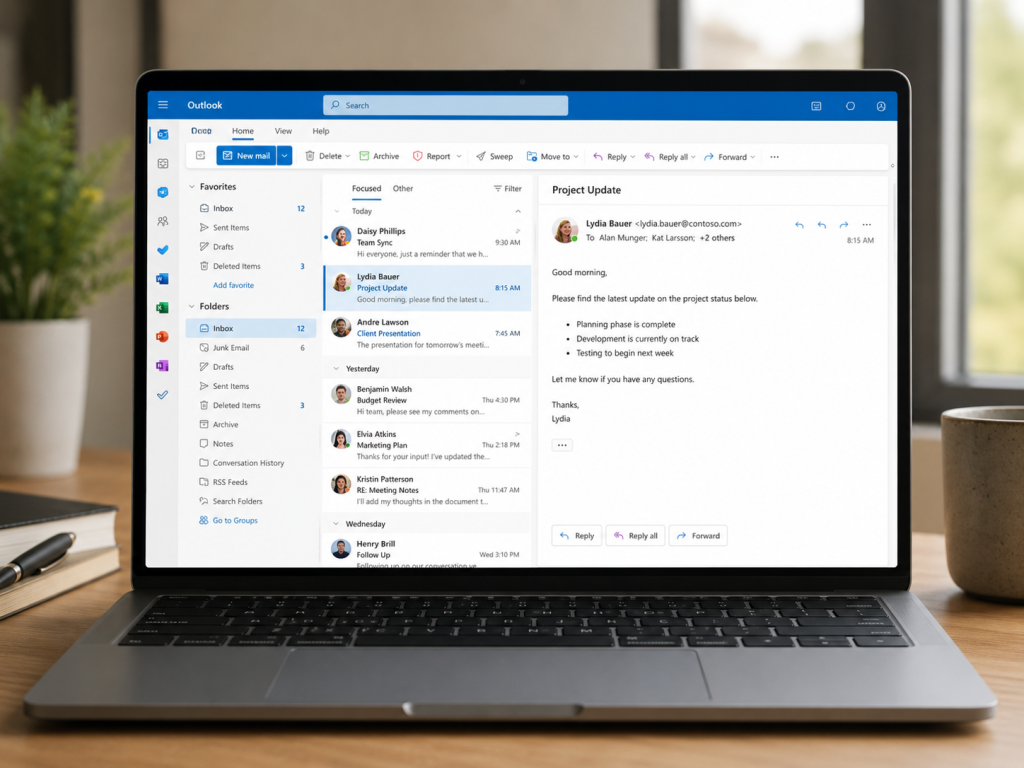
You’re waiting for an important email. It should have arrived by now. You know it’s been sent, but nothing has hit your inbox.
Before panic sets in – before you start wondering whether Microsoft 365 is down or your email account has stopped working, there are a few simple checks worth trying first.
Outlook not receiving emails is one of the most common issues reported to our helpdesk here at Trusted Computing. The good news is that many cases can be resolved in just a few minutes.
Is Outlook Actually Connected?
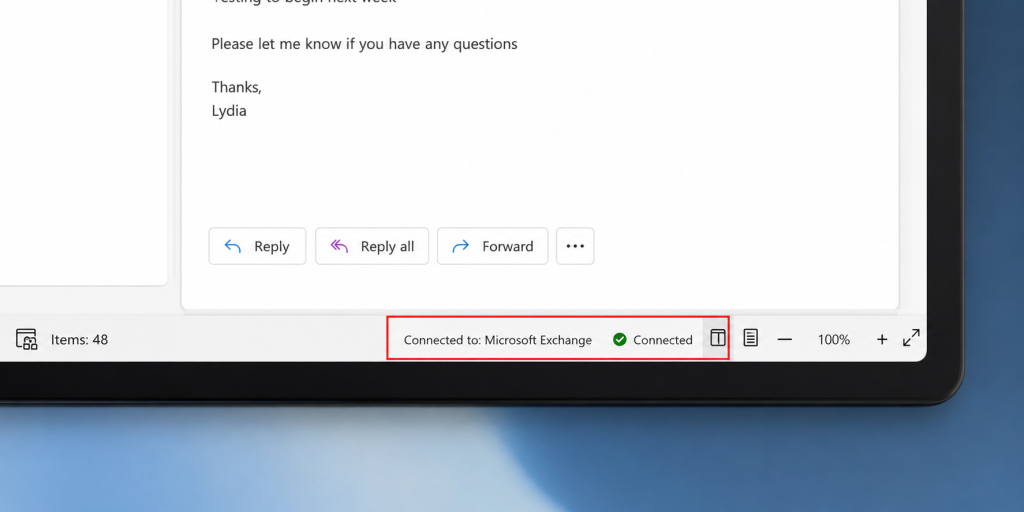
One of the first things to check is Outlook’s connection status.
Look in the bottom right corner of the Outlook window.
You may see messages such as:
- Working Offline
- Trying to Connect
- Disconnected
If Outlook isn’t connected to Microsoft 365, new emails won’t arrive until the connection is restored.
Quick Fix
Select the Send/Receive tab and check that Work Offline is not enabled.
If it is, click it once to reconnect Outlook.
Try Restarting Outlook
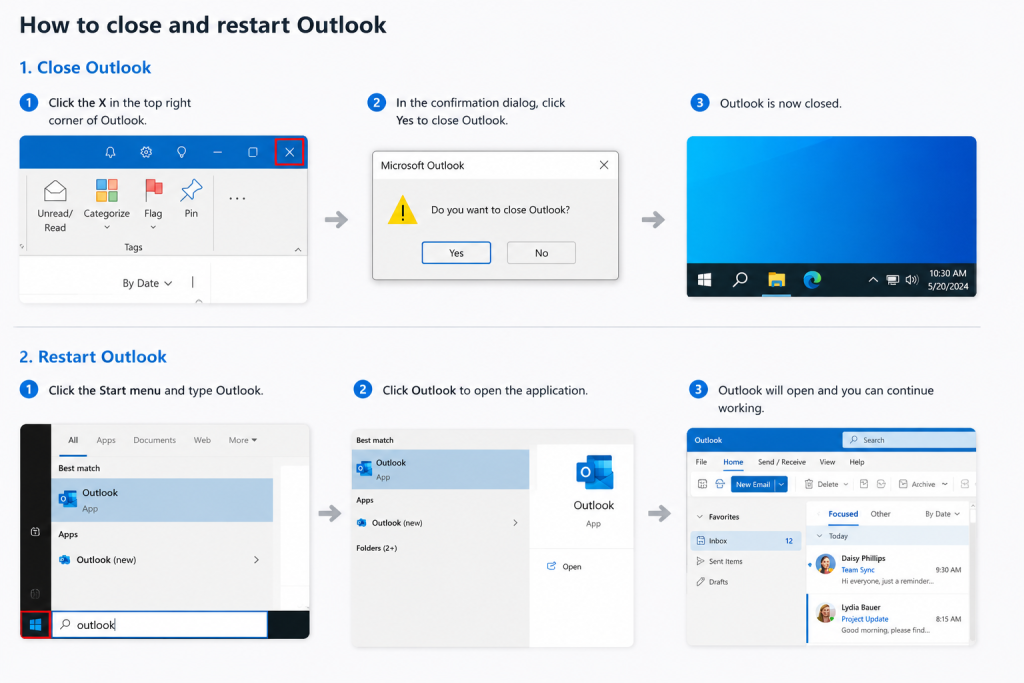
Like any application, Outlook can occasionally become unresponsive or lose its connection to Microsoft 365.
A simple restart often resolves the issue.
Quick Fix
- Close Outlook completely.
- Wait a few seconds.
- Open Outlook again.
- Allow a minute for it to reconnect and synchronise.
You’d be surprised how often this works.
Check Outlook on the Web
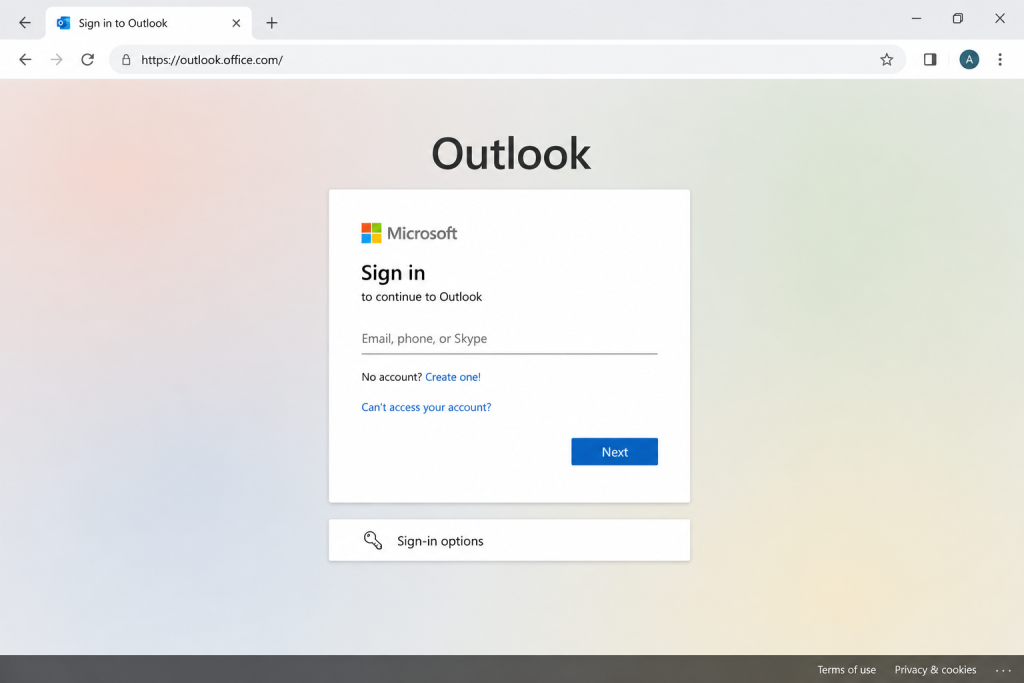
A useful way to narrow down the problem is to see whether emails are arriving elsewhere.
Sign in to Outlook on the Web using your Microsoft 365 account.
If new emails appear there but not in the Outlook application, the issue is likely with the desktop app rather than your mailbox.
This information can also help your IT provider diagnose the problem more quickly if further investigation is needed.
Is Your Internet Connection Working?
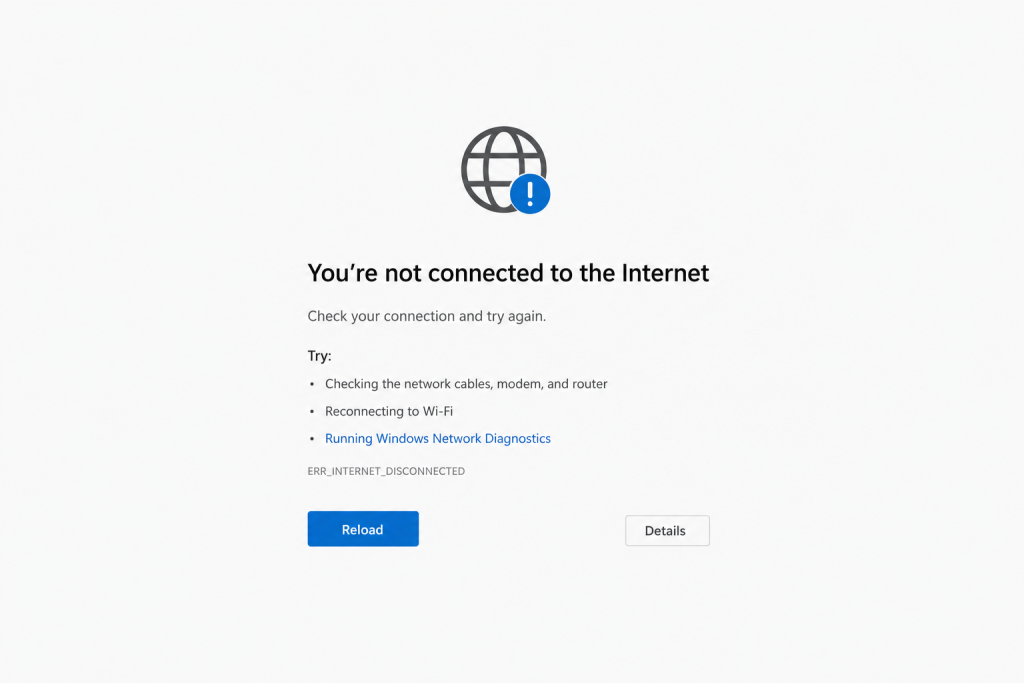
Outlook relies on a stable internet connection to send and receive emails.
Even if websites are loading, intermittent connectivity issues can sometimes affect Outlook.
Quick Fix
Try opening a few different websites.
If you’re using WiFi, disconnect and reconnect to the network.
If possible, move closer to your wireless access point or test using a wired connection.
Have You Restarted Your Computer Recently?
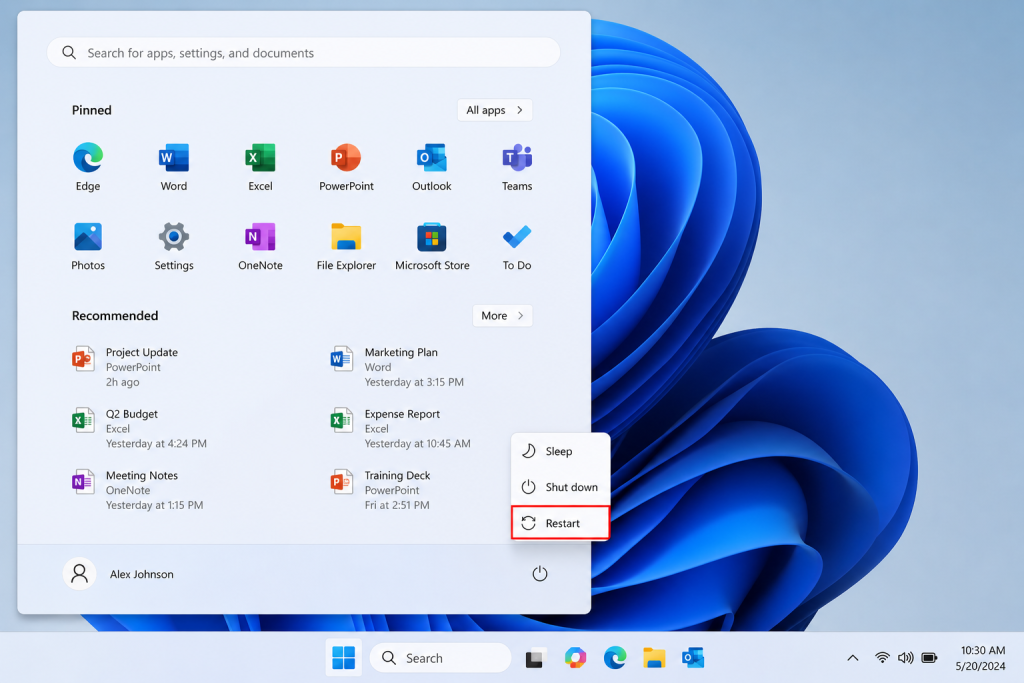
It might sound simple, but restarting your computer remains one of the most effective troubleshooting steps available.
A restart can:
- Restore Outlook services
- Refresh network connections
- Complete pending Windows updates
- Clear temporary software issues
If your computer has been running continuously for several days, a restart is well worth trying.
Is Your Mailbox Full?
Additional check if the five quick fixes haven’t worked. Although less common nowadays, mailbox storage limits can sometimes prevent normal email operation.
Microsoft 365 plans include generous storage allowances, but users who receive large attachments regularly can occasionally approach their limits.
Quick Fix
Delete unwanted emails, especially those containing large attachments, and empty your Deleted Items folder.
What If Emails Still Aren’t Arriving?
If you’ve tried the steps above and Outlook still isn’t receiving emails, there could be a more complex issue involved, such as:
- Microsoft 365 service issues
- Mailbox synchronisation problems
- Account authentication issues
- Security or licensing problems
- Corrupted Outlook profiles
But at this point it’s worth contacting your IT support provider for further investigation.
Before Calling the Helpdesk
Before raising a support ticket, try the simple checks from above:
1. Confirm Outlook Is Connected
Make sure Outlook isn’t showing “Working Offline” or “Disconnected”.
2. Restart Outlook
Close and reopen the application.
3. Check Outlook on the Web
See whether emails are arriving through your browser.
4. Test Your Internet Connection
Confirm your device is connected and online.
5. Restart Your Computer
A quick reboot can resolve a surprising number of Outlook issues.
Many email problems can be fixed in less than five minutes using these simple steps. If the issue persists, your IT support team will have a much better starting point for diagnosing the cause and getting you back to work quickly.
Want more tips like this, delivered straight to your inbox every month? Sign up for our free newsletter where we tackle common tech hiccups, share useful IT tricks, and occasionally review the tech we actually send out to our clients. Sign up today!