If your business uses Microsoft 365, there’s a good chance you’re already using SharePoint.
You might just not call it SharePoint.
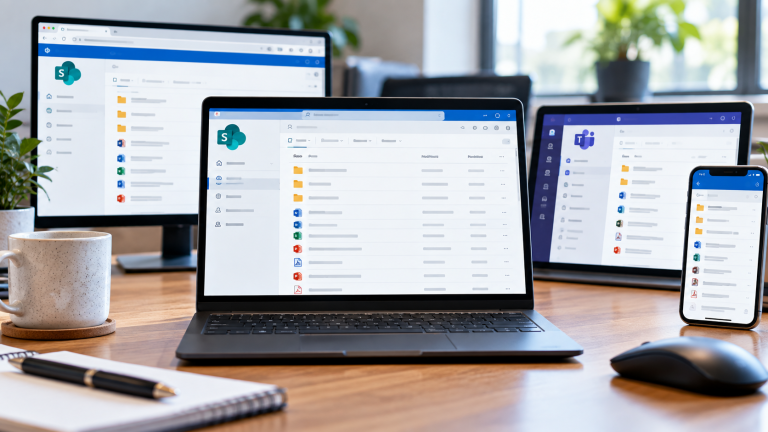
Open a file from a Teams channel and it’s probably sitting in SharePoint behind the scenes. Open a shared company folder through Windows Explorer and that too could be SharePoint, synchronised to your computer using OneDrive.
Microsoft has made all of this relatively seamless.
That’s good for users.
But it can make understanding where your company’s information actually “lives” a lot less straightforward.
And as businesses grow, SharePoint environments tend to grow with them.
More people. More files. More shared documents. More versions of documents. More permissions. More SharePoint sites.
None of that necessarily causes a problem.
But it can get messy.
We know because we’ve seen what happens when it does.
For example, one SharePoint environment we work with had grown to around 12.5TB, even though the information that genuinely needed to live in SharePoint was closer to 2.5TB.
The initial knee-jerk reaction would have been to buy more SharePoint storage. But it made more sense to find out what was using it first, though, as storage size is only part of the story; let’s explore.
What is Sharepoint?
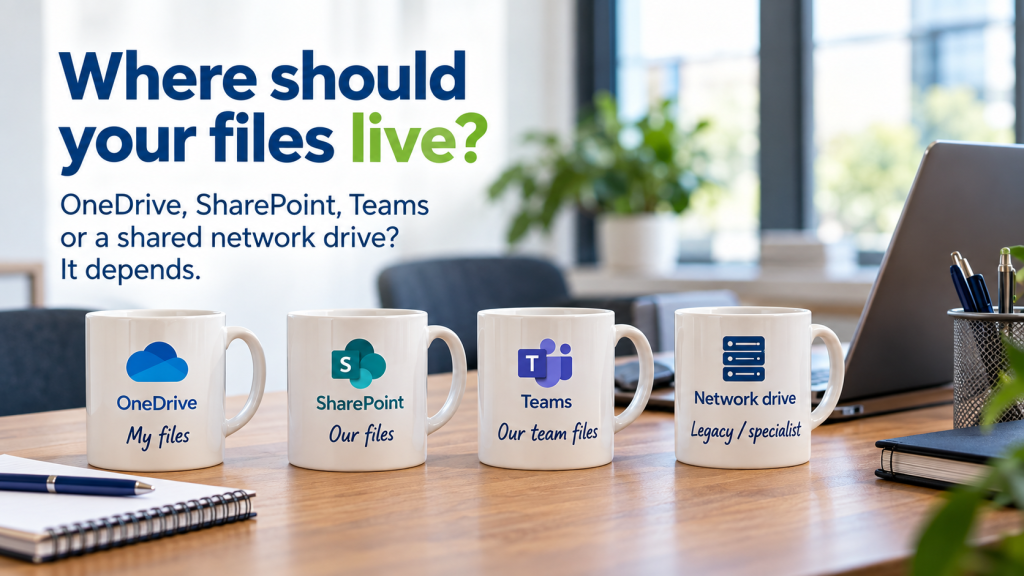
- OneDrive = my files.
- SharePoint = our files.
Are Microsoft Teams files stored in SharePoint?
Generally, yes.
Files uploaded to Microsoft Teams channels are generally stored in SharePoint. Users may access the same file through Teams, SharePoint in a browser or Windows Explorer.
This means three employees could appear to be accessing a single document in three completely different ways.
One opens it in Teams,
Another goes to SharePoint in their browser,
A third opens it through Windows Explorer.
They’re potentially all working with exactly the same file.
Once you understand that relationship between Microsoft Teams, OneDrive and SharePoint, Microsoft 365 starts making considerably more sense.

Is SharePoint just a network drive in the cloud?
No – and this distinction matters.
SharePoint can replace much of the functionality businesses traditionally associate with a company file server, but it isn’t simply a networked drive in Microsoft’s cloud.
It’s a web-based information and collaboration platform with document libraries, permissions, views, metadata and version histories – all accessible through the cloud.
Traditional networked file servers are still essential outside of SharePoint.
Some older accounting, ERP and specialist business applications still depend on conventional file server configurations, particular folder structures, drive letters or file locking behaviour.
Trying to force that functionality into SharePoint can create problems rather than solve them.
A better question would be:
What information belongs in SharePoint and what has a good reason to live somewhere else?

So why does SharePoint get so messy?
Nobody sets out to make it messy.
People are simply getting on with their jobs.
A new project starts,someone creates a Team,
a new SharePoint site appears.
More people join.
Files get moved around.
Permissions change.
Documents are edited.
The business grows.
And something simple that worked perfectly well when it was first set up can look quite different a few years later.
Version history is a particularly good example.
SharePoint Version History: a word of warning
Version history is an extremely useful SharePoint feature. If someone changes an important document and that change needs to be reverted, previous versions can save the day.
We’ve seen heavily edited files accumulate hundreds, sometimes approaching a thousand, previous versions.
But those versions consume storage capacity.
That can create a tricky situation where you look at your current files and think“Wait, we’ve not used anywhere near three terabytes of data…?” YetSharePoint tells you that you have.
Because the individual files you see are only part of what SharePoint is storing – it also has to store all of the documents’ historical versions too.
How did one SharePoint environment reach 12.5TB?
With that in mind, let’s head back to our earlier example.The client is a heavy SharePoint user and their environment had grown over time to around 12.5TB.
The simplest solution would be to purchase additional SharePoint capacity.
But before spending the client’s money, we wanted to understand why the storage had grown so much.
We found excessive historical versions and unnecessary duplication. But there was another interesting discovery too.
Version housekeeping had previously been put in place, but as additional SharePoint sites had subsequently been created, they hadn’t inherited the same configuration and had quietly started accumulating substantial version histories of their own.That’s a pretty good example of how SharePoint gets messy.
There wasn’t one huge mistake that needed fixing – it was just that the way the organisation was using SharePoint had evolved.
Do you always need to buy more SharePoint storage?
In some situations, buying additional storage will be the right answer. But it’s always sensible to find out what’s consuming your existing storage first.
For the client above, we were able to trim their excessive version history, unnecessary duplication and information that no longer needed to occupy, potentially expensive, live SharePoint storage.
We also developed an archiving approach.
Files that hadn’t been used for a significant period could be moved from live SharePoint into lower cost Azure storage.
Importantly, users didn’t simply see their old files disappear. A placeholder remained in the original SharePoint location, showing that the document had been archived and could be restored if it was needed again.
Combining sensible housekeeping and archiving reduced the client’s live SharePoint footprint from around
12.5TB to below 2.5TB.
We’ll cover exactly what we did in a separate case study.
At Trusted Computing, we know that good IT advice shouldn’t automatically result in yet another monthly licence.
Sure, sometimes another product is exactly what a business needs. But at other times,
it’s better to understand and properly configure the tools you’re already paying for.
Does SharePoint fill up the storage on your computer?
It shouldn’t have to.
Synchronising a SharePoint library using OneDrive doesn’t mean every document needs to be permanently downloaded onto the computer.
Microsoft’s Files On Demand feature allows files to remain visible in Windows Explorer without every file consuming local disk space.
Windows can also be configured so files that haven’t been used for a period return to being cloud only. They haven’t been deleted. They simply stop taking up space on that computer.
This matters particularly when employees have laptops with relatively small SSDs and access to very large SharePoint libraries.
Again, it’s less about using all of SharePoint’s features and more about whether it has been sensibly configured for the way your business works.
Does SharePoint need a separate backup?
SharePoint has useful built in recovery features.
There’s a version history and a two stage Recycle Bin. Deleted information can normally remain recoverable for around 93 days from the original deletion.
But Microsoft 365’s own resilience and an independent backup strategy aren’t necessarily the same thing. A business should still consider what needs to be recoverable, how long it needs to be retained and what would happen if the standard Microsoft recovery options weren’t sufficient.
There are different ways of approaching that, including Microsoft’s own backup services and independent Microsoft 365/SharePoint backup providers; however, backup strategy should always be a conscious, informed decision.
Our advice is never to fall into the assumption that “it’s in the cloud, so it’s backed up”.
Do you need to understand all SharePoint’s ins and outs?
Thankfully, no.
If you’re running a business, you shouldn’t need to become an expert in SharePoint document libraries, version histories, storage quotas or Azure storage.
Although there are some questions worth being able to answer:
- Where does our company data live?
- Who owns it?
- Who should be able to access it?
- What happens when somebody joins or leaves?
- How would we recover it?
- How much is storing it costing us?
- Are we keeping old information sensibly?
Those are all business questions
The technical detail behind them is where your IT provider should bring value.
Need help making sense of your SharePoint setup?
If your business uses Microsoft 365 but you’re not completely sure where your information is stored, whether your SharePoint storage is being used efficiently, or whether the way it was originally set up still makes sense today, we can help you work through it.
Trusted Computing helps businesses across Greater Manchester and Cheshire get more from Microsoft 365 without making technology more complicated than it needs to be.
Frequently Asked Questions About SharePoint
What is SharePoint used for in a business?
SharePoint is commonly used to store, organise and share company documents and information. It is particularly useful when files belonging to the organisation need to be accessed by several people.
What is the difference between OneDrive and SharePoint?
A useful rule of thumb is OneDrive for my files and SharePoint for our files. OneDrive is associated with an individual user, while SharePoint is designed for information belonging to a team or organisation.Should we move all our company files to SharePoint?
Not necessarily. Some applications and workloads still work better with conventional Windows/local network file storage. Decide independently where different types of information genuinely belong.
Why is our SharePoint storage so high?
SharePoint storage can be consumed by more than the current files you see. Historical versions, duplicated information, forgotten sites and items in “first stage” Recycle Bins can all contribute.
Does SharePoint need to be backed up?
SharePoint provides built in recovery features, but businesses should still decide whether their requirements justify an independent Microsoft 365 backup. The answer depends on the information being protected and the organisation’s recovery requirements.