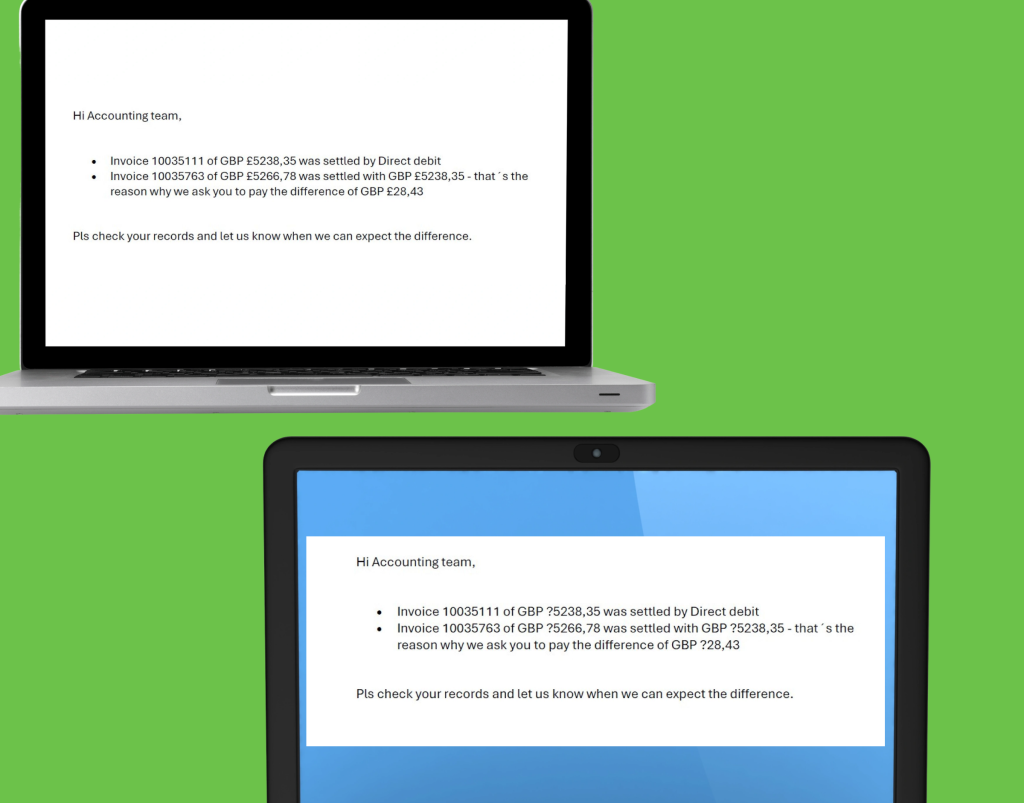
If you have typed the £ symbol in Outlook, seen it displayed correctly while writing the email, and then discovered it has turned into a question mark after sending, you are not alone.
We have seen this reported intermittently across multiple users and devices. The message looks fine while composing. The pound symbol displays as expected. Then after sending, saving, or when received by someone else, it appears as a question mark instead.
This can understandably cause confusion, especially in invoices, quotations, financial summaries or client communications where currency accuracy matters.
The good news is that this is not random, and it is not usually user error. There is a technical reason behind it.

What Causes the £ Symbol to Change to a Question Mark?
If your £ symbol is turning into a question mark in Outlook, a character encoding mismatch is one possible cause rather than a keyboard or device fault.
Email systems rely on character encoding standards to interpret symbols correctly. The £ symbol is not part of basic ASCII encoding. It requires extended character support.
UTF 8 is widely used to support international characters and symbols, including the pound sign.
The issue occurs when:
• Outlook or another sending system uses a non UTF 8 encoding format
• The receiving system expects UTF 8
• The receiving system cannot interpret the £ character correctly
When this mismatch happens, the system substitutes the unrecognised character with a question mark.
So the symbol itself has not disappeared. It has simply been misinterpreted.
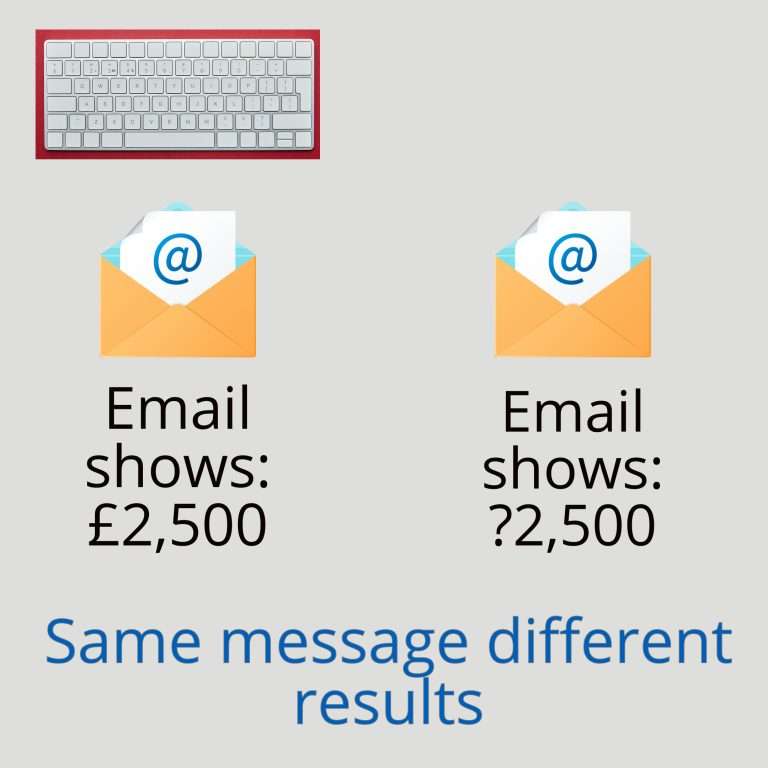
Why This Appears Intermittent
One of the most frustrating aspects of this issue is that it does not always happen.
You might see:
• One user affected, then not again for weeks
• The same email appearing correctly in Sent Items but incorrect for the recipient
• Different behaviour between internal and external recipients
That inconsistency usually depends on:
• The encoding settings on the sender’s Outlook client
• The mail flow path through Exchange or third party filtering systems
• The encoding expectations of the recipient’s email system
Because encoding can be influenced at multiple points, the issue can feel random even though the root cause is consistent.
Why This Matters in Business Environments
For growing businesses, especially those sending quotations, invoices or financial updates, incorrect currency symbols can:
• Undermine professionalism
• Create confusion in pricing
• Lead to misinterpretation of financial figures
• Damage trust with clients
When technology quietly alters financial symbols, it creates unnecessary risk and friction.
This is why consistent encoding standards across Microsoft 365 environments matter more than most people realise.
How to Fix the £ Symbol Problem in Outlook
In most cases, this can be resolved by ensuring Outlook is set to use Unicode UTF 8 encoding.
Follow these steps:
Open Outlook
Go to File
Select Options
Choose Advanced
Scroll down to the International options section
Set the preferred encoding to Unicode UTF 8
Restart Outlook
This helps ensure Outlook uses a modern, universal encoding format that correctly supports the £ symbol and other international characters.
If the Problem Continues
If the issue persists after setting UTF 8 encoding, further investigation may be required.
Areas to review include:
• Exchange transport rules
• Third party email filtering or archiving systems
• Hybrid mail flow configurations
• Legacy systems still using older encoding formats
In Microsoft 365 environments, especially where businesses have grown over time and added security layers or integrations, encoding inconsistencies can sometimes be introduced without anyone noticing.
Preventing Encoding Issues Across Microsoft 365
To avoid recurring character encoding problems:
• Standardise Outlook settings across all users
• Ensure mail flow uses modern encoding standards
• Review third party mail security tools
• Keep Outlook clients updated
Inconsistent configuration is often the silent cause of issues that appear unpredictable.
Final Thoughts
If your £ symbol is turning into a question mark in Outlook, the issue is almost always an encoding mismatch rather than a keyboard or device fault.
Setting Outlook to use Unicode UTF 8 resolves the problem in the majority of cases and ensures compatibility across modern email systems.
If you would like help reviewing your Microsoft 365 email configuration to prevent issues like this recurring, we are always happy to provide clear, practical guidance.
Reliable email should be something you never have to think about.